Google Sheets to Notion: Embed, Import, or Sync (2026)
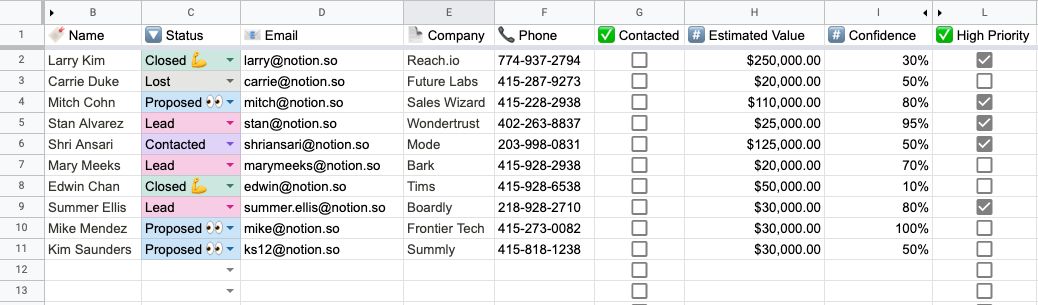
Google Sheets to Notion in short: There are three ways, and they do different jobs. Embed the sheet's share link if you only want to see it on a Notion page. Import it as a CSV if you want a Notion database once. Sync it with an add-on like Sync2Sheets if the data keeps changing: rows become Notion pages and both sides stay updated in real time. Moving a whole spreadsheet? Jump to the bulk migration section.
Most guides cover the other direction, pulling a Notion database out into a spreadsheet. This one is the reverse: importing data that already lives in Google Sheets into Notion, and keeping it there as the numbers change. If you want the Notion to Google Sheets direction, that is a separate workflow.
| You want to... | Use | Result in Notion |
|---|---|---|
| Show the sheet on a page | Embed | A read-only preview of the sheet |
| Turn the sheet into a database once | CSV import | A static Notion database |
| Keep the sheet and Notion in step | Live sync | A real Notion database that updates both ways |
Here is how each one works and when to pick it.
Embed a Google Sheet in Notion (view only)
If you only need people to see the spreadsheet while they read a Notion page, an embed is enough. In Google Sheets, click Share and set access so anyone with the link can view. Then paste the link into Notion and choose Embed (or type /embed first).
What you get is a window into the sheet, not Notion data. You cannot filter, sort, or reference those cells from a Notion database, and private sheets show up blank. The full walkthrough, including the common blank-embed fixes, is in how to embed a Google Sheet in Notion.
If the goal is a clean table on the page that updates from a range of cells (a pivot summary, a leaderboard), Sync2Sheets table blocks render that range as a native Notion simple table instead of an iframe.
Can I import a Google Sheet into Notion?
Yes. The built-in way is a CSV import. Notion reads a CSV file and turns it into a database, so the path is: download your sheet as a CSV, then import that file in Notion.
Convert a Google Sheet into a Notion database with CSV
- In Google Sheets, open the sheet you want to move.
- Click "File," then "Download," then "Comma-separated values (.csv)." If your file has multiple tabs, only the active tab is exported, so download each tab you need.
- In Notion, open the page where you want the data to live.
- Type
/importor click "Import" in the sidebar, then choose "CSV." - Select your downloaded file. Notion creates a new database, reads the header row as property names, and turns each row into a page.
- Review the property types. Notion guesses them (text, number, date, select), so fix any column it read incorrectly.
That is the whole manual method, and for a one-time move it works fine.
The catch with importing a Google Sheet to Notion
The CSV import is a snapshot. The moment you finish, the connection is gone. A few things follow from that:
- It does not stay synced. Edit the sheet tomorrow and Notion will not know. Edit Notion and the sheet will not know.
- Re-importing creates duplicates. Notion does not match rows on a second import, so running it again gives you a second copy of every page rather than an update. Keeping things current means deleting the old database or manually merging, which gets painful fast.
- Formulas become values. A CSV carries the computed result, not the
=GOOGLEFINANCEorVLOOKUPbehind it. Those numbers freeze at export time. - Relations do not survive. A column that points at another table comes through as plain text. You rebuild every relation by hand afterward.
So the CSV import answers "can I get this sheet into Notion once," but not "can I keep them connected."
How to connect Google Sheets to Notion and keep it synced
If you want the data to stay current, you need a live connection instead of a file copy. Sync2Sheets is a Google Workspace add-on (184,000+ installs, 4.5 rating on the Marketplace) that keeps a Google Sheet and a Notion database in sync in real time, in both directions. Two features make the Sheets to Notion direction work well.
Page creation. Instead of importing a file, you add rows in the sheet and Sync2Sheets builds the Notion pages for you. Type NEW in the Page ID column of a row and, on the next sync, Sync2Sheets creates a matching Notion page with every property filled in from that row. Type DRAFT if you want to stage a page before it is created. See page creation for the details.
Per-column direction. Each column can sync Notion to Sheets, Sheets to Notion, or both ways. Set a column to Sheets to Notion and a spreadsheet formula (=GOOGLEFINANCE, VLOOKUP, IMPORTXML) becomes the source of truth for that Notion property. The result recalculates in Sheets and lands on the Notion page within seconds. Notion edits to other columns still flow back to the sheet.
Set up a synced Sheets to Notion connection
- Install Sync2Sheets from the Google Workspace Marketplace and grant the Google and Notion permissions it asks for.
- Open your Google Sheet (the one with the data you want in Notion) and open the Sync2Sheets sidebar from the "s2s" icon.
- Connect your Notion workspace and pick the Notion database you want to sync with, or create a fresh one to receive the rows.
- Turn on Page Creation in the database settings. It is off by default.
- Set column directions. Leave columns driven by Sheets formulas as Sheets to Notion, and set anything you will edit from either side to both ways.
- Mark new rows. In rows that do not exist in Notion yet, type
NEWin the Page ID column. - Start the sync. Sync2Sheets creates a Notion page for each
NEWrow, fills in the properties, and from then on keeps both sides updated automatically.
After the first sync, you stop thinking about it. Add a row in Sheets and a Notion page appears. Change a number in Notion and the sheet catches up. No re-importing, no duplicates.
Bulk migration: move a whole spreadsheet into Notion
The setup above is the same whether you are adding five rows or five hundred. What changes at volume is preparation. Here is the order that avoids a database full of half-filled pages.
1. Build the Notion database first, then sync it. Create the properties you need in Notion (even with zero pages) and sync that empty database to a new tab in your spreadsheet. Sync2Sheets writes a header row with one column per property plus the Page ID column. Then open the database settings in the sidebar and turn on Page Creation. It is off by default, and without it NEW rows are ignored. Migrating into a database that already has the right property types beats letting an import guess them.
2. Paste your data under those headers. Copy the rows from your original tab into the synced tab, lining each column up with the matching Notion property. Text, numbers, dates, checkboxes, URLs, emails, and phone numbers paste straight in. For select and multi-select columns, use the option names exactly as they appear in Notion. For person columns, use the workspace member's email address.
3. Relations go in by Page ID. If a column should link to pages in another Notion database, sync that database too and paste the Page IDs from its sheet into the relation column. That is the one step a CSV import cannot do at all.
4. Stage with DRAFT, release with NEW. While you are still cleaning up values, keep DRAFT in the Page ID column. Sync2Sheets ignores those rows. When a batch is ready, change DRAFT to NEW (select the column range and paste, it is one edit) and the next sync creates the pages.
5. Fix the red cells. Any row that cannot be created gets a red Page ID cell reading ERROR, with a note explaining why: a select option that does not exist in Notion, a relation Page ID that was not found, a required title left blank. Fix the value, change ERROR back to NEW, and only that row is retried. The rows that worked are untouched.
6. Keep the sheet as the editing surface. After the migration, do not delete the tab. Set the columns your team edits in bulk to Both ways and the sheet stays a working view of the Notion database. Change fifty statuses with a paste in Sheets and they land in Notion in seconds, or update a page in Notion and the row follows. This is what a CSV import can never give you: the spreadsheet stays live after the move.
A migration of a few hundred rows finishes in a single sync. Larger ones simply take a bit longer. There is no API to call and no script to write.
Embed vs import vs live sync
| Embed | CSV import | Sync2Sheets sync | |
|---|---|---|---|
| Notion data you can filter and sort | No, it is a preview | Yes | Yes |
| Stays current | Shows the sheet as it is now | No, snapshot only | Yes, real time both ways |
| Re-running | Nothing to re-run | Creates duplicates | Updates in place |
| Creates Notion pages from rows | No | On first import only | Anytime, mark a row NEW |
| Keeps Sheets formulas live | Yes, inside the preview | No, values freeze | Yes, set column to Sheets to Notion |
| Relations | No | Lost, rebuilt by hand | Set by Page ID |
| Cost | Free | Free | Free 7-day trial, then from $12/mo |
| Best for | Showing a sheet on a page | A one-time copy | Migrations, recurring work, live data, dashboards |
Which method should you use?
- Embed: good when people only need to look at the sheet from a Notion page.
- CSV import: good for a one-time move, an archive, or data you do not plan to touch again in the sheet.
- Sync2Sheets: better any time the data keeps changing, you want spreadsheet formulas feeding Notion, you have relations to preserve, or you would rather add rows in a familiar grid than click through Notion's editor.
For most people the deciding factor is duplicates. The first CSV import is painless. The fifth one, with a database full of doubled pages, is the reason people switch to a live sync.
Connect your data and keep it in sync
If you only need the data in Notion once, the CSV import is free and takes a couple of minutes. If you want the two to stay connected, with new rows becoming Notion pages and formulas driving properties, try Sync2Sheets free for 7 days. No credit card required.
Frequently asked questions
What is the best way to get Google Sheets into Notion?
It depends on what you need in Notion. To show the sheet on a page, embed its share link (read-only preview). To turn it into a Notion database once, download it as CSV and import it. To keep it current, sync it with an add-on like Sync2Sheets, which turns rows into Notion pages and updates both sides in real time.
Can I import a Google Sheet into Notion?
Yes. Download your Google Sheet as a CSV (File, Download, Comma-separated values), then in Notion use Import and pick CSV to turn it into a database. This is a one-time copy. For a connection that stays current, use a sync add-on like Sync2Sheets instead of re-importing the file.
How do I convert a Google Sheet into a Notion database?
Export the sheet to CSV, then import that file in Notion. Notion reads the header row as property names and each row becomes a page. It guesses property types, so review them afterward. The result is a static snapshot, so later edits in the sheet will not appear unless you set up a live sync.
How do I bulk import hundreds of rows from Google Sheets into Notion?
Sync the target Notion database to your sheet with Sync2Sheets, turn on Page Creation in the database settings, paste the rows in, and type NEW in the Page ID column for each one. The next sync creates a Notion page per row with every property filled in. Rows that fail show ERROR with a note explaining why, so you fix them and retry without touching the rows that worked.
Can I keep Google Sheets and Notion synced automatically?
Yes. Sync2Sheets is a Google Workspace add-on that keeps a sheet and a Notion database updated in real time, in both directions. You pick the direction per column, so Sheets formulas can drive Notion properties while Notion edits still flow back to the sheet within seconds.
How do I create Notion pages from Google Sheets rows?
With Sync2Sheets, add a row in the synced sheet and type NEW in the Page ID column. On the next sync, Sync2Sheets creates a matching Notion page with every property filled in from that row. You can also type DRAFT to stage a page before it is created.
Does importing a Google Sheet to Notion keep formulas?
No. A CSV import brings in the computed values, not the formulas behind them. If you need Sheets formulas like GOOGLEFINANCE or VLOOKUP to keep updating Notion, use a live sync and set those columns to push from Sheets to Notion so the latest results land on the properties.
Is there a free way to get Google Sheets data into Notion?
Yes. The CSV import in Notion is free and works for a one-time copy. The tradeoff is that it goes stale the moment your sheet changes, and re-importing tends to create duplicates. Sync2Sheets offers a free 7-day trial if you want the connection to stay live.
Sync Notion to Google Sheets in real time
Use Sheets formulas in Notion, build dashboards, back up your databases, and compare tools. Free 7-day trial.