Export a Notion Database to Excel or CSV: 3 Ways (2026)
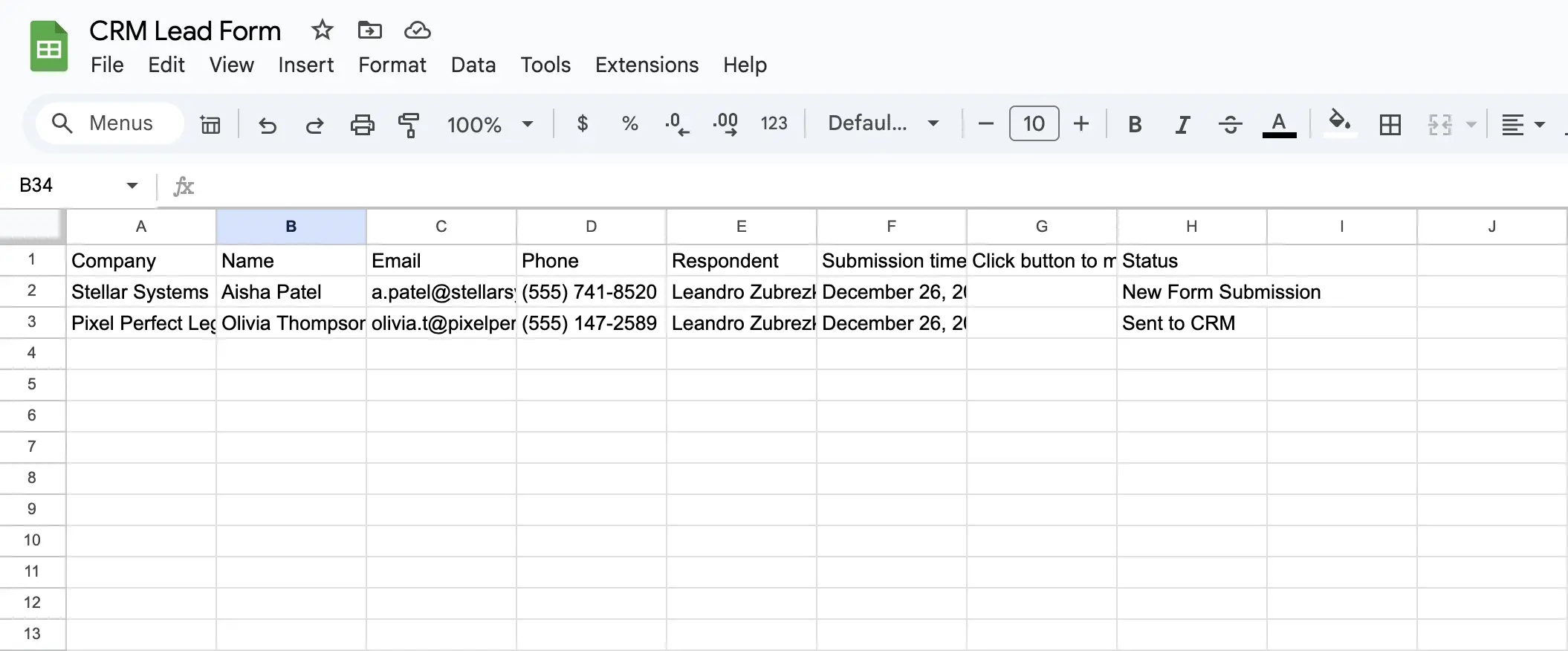
Exporting a Notion database to Excel or CSV in short: Notion's built-in export (three dots, Export, Markdown & CSV) gives you a CSV that Excel opens. That covers a one-time copy. If you need the Excel file to stay current, sync the database to Google Sheets with Sync2Sheets and download the sheet as .xlsx whenever you need it. Notion has no direct .xlsx export, and Sync2Sheets does not sync to Excel directly.
People end up here for three reasons. Finance wants the numbers in Excel because that is where their models live. Someone outside the company needs the data and does not have Notion. Or the database has outgrown what Notion's rollups and formulas can do and it is time for a real pivot table. This guide covers the three ways to get there and what each one breaks. For the other formats (PDF, HTML, the whole workspace), see how to export a Notion database.
What Notion actually exports
Before picking a method, it helps to know what comes out. Notion exports a database as a CSV file, optionally zipped together with one Markdown file per page. Pages can also go out as HTML or PDF. There is no .xlsx option anywhere in Notion, so Excel always enters the picture through a CSV.
In that CSV:
- Relations become the titles of the related pages, separated by commas.
- Rollups and formulas export their current value as text or a number. The calculation is gone; only the result stays.
- Selects, multi-selects, and status keep their labels but lose their colors.
- Dates export as text in Notion's display format, which Excel may or may not read as a date.
- Rich text loses bold, links, and mentions. Line breaks inside a cell survive but can confuse a careless import.
- Files and media export as links, not as the files themselves.
- Checkboxes export as Yes or No.
Every method below starts from this same flattened shape. The difference is how often you have to repeat the work.
Method 1: Notion's built-in export to CSV, then Excel
This is the free route and the one that fits a one-time handoff.
Export from Notion
- Open the database as a full page (not an inline view, or you will export the whole page it sits on).
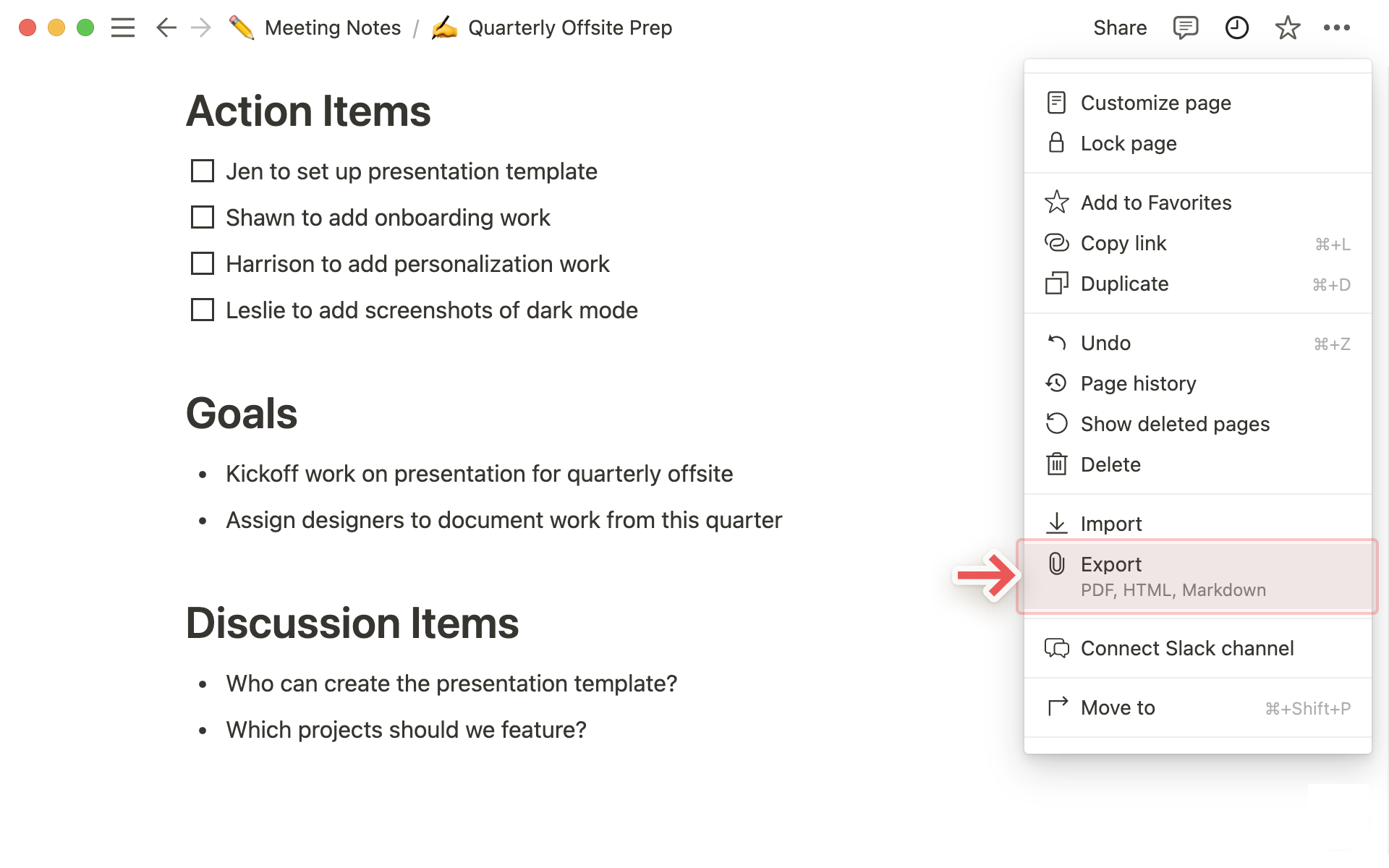
- Click the three dots in the top-right corner and choose Export.
- Set Export format to Markdown & CSV.
- Pick Current view if you want the filters and sorts you are looking at, or Default view for everything.
- Turn off Include subpages unless you need the page content too. With it on, you get a zip with one Markdown file per row.
- Click Export and unzip the download.
For an entire workspace, go to Settings, then Export all workspace content. Notion emails you a download link that expires after seven days, and large workspaces can take many hours to process.
Open the CSV in Excel without mangling it
Double-clicking the CSV works for simple English text. For anything else, let Excel import it properly:
- Open a blank workbook and go to Data, then From Text/CSV.
- Pick the file. In the preview, set File Origin to 65001: Unicode (UTF-8) so accents and symbols survive.
- Confirm the delimiter is Comma.
- Click Transform Data if any column needs a type fix (dates read as text are the usual one), otherwise Load.
- Save as .xlsx.
The result is a normal Excel workbook you can pivot, chart, and share. It is also frozen at the moment you clicked Export. Any edit in Notion after that is missing, and repeating the export means repeating the import.
Method 2: Copy and paste from a table view
For a quick look at a small database, skip the export entirely:
- Switch the database to a Table view.
- Click the first cell, then shift-click the last cell to select the range.
- Copy, switch to Excel, and paste into cell A1.
Notion pastes tab-separated text, so columns land correctly. Types do not: everything arrives as text, relations paste as page titles, and anything hidden by the view's filters is left out. Good for a few hundred rows you need in the next minute. Wrong for anything you will paste twice.
Method 3: Sync to Google Sheets, download as Excel
If you keep needing a fresh Excel file, the problem is not the export. It is that Notion has moved on since the last one. The fix is a copy that never goes stale, and then you take Excel snapshots from that.
Sync2Sheets is a Google Workspace add-on that keeps a Notion database and a Google Sheet identical in real time. Notion edits land in the sheet in seconds through Notion's official webhooks. Property types stay intact: relations arrive as links to the connected pages, rollups and formulas as their live values, selects with their colors, dates as real dates. From there, Excel is one menu away.
- Install Sync2Sheets from the Google Workspace Marketplace.
- Open a Google Sheet, click the s2s icon in the right sidebar, and connect your Notion workspace.
- Choose Sync Database, pick the database, and click Start Sync. The sheet fills in seconds.
- Whenever you need an Excel file: File, Download, Microsoft Excel (.xlsx).
Every download is current as of that second. Pivot tables and charts built in the sheet come along in the .xlsx, and the sheet itself keeps tracking Notion between downloads.
If Excel needs to pull the data itself
Some teams want the workbook to refresh from inside Excel rather than downloading a new file. Publish the synced sheet as a CSV link (File, Share, Publish to web, choose the tab and Comma-separated values), then in Excel use Data, From Web with that link. Excel's refresh button now pulls the current Notion data through the synced sheet. One caveat: a published link is readable by anyone who has it, so keep this to data that is not sensitive.
The three methods side by side
| Built-in CSV export | Copy and paste | Synced sheet, download .xlsx | |
|---|---|---|---|
| Cost | Free | Free | From $12/mo (annual) |
| Freshness | Snapshot at export time | Snapshot at paste time | Always current, snapshot at download time |
| Relations and rollups | Flattened to text | Flattened to text | Preserved in the sheet, values in Excel |
| Repeat work | Export and import every time | Paste every time | One download |
| Filters respected | Current or default view | Current view only | Whole database, filter in Sheets |
| Best for | One-time handoff, archive | A few rows, right now | Recurring reports, finance, anything you open twice |
Notion vs Excel: which one should hold the data?
The export question usually hides a bigger one. If you keep exporting, maybe the data should live in a spreadsheet. Sometimes yes: Excel and Google Sheets win on formulas, pivots, and charts by a wide margin. Notion wins on everything around the numbers: page content, relations, comments, permissions, and the fact that non-spreadsheet people actually update it.
The setup that works for most teams is both. Notion stays the place where people enter and discuss the data. The spreadsheet is where the analysis happens, fed automatically so nobody has to export. If you want the longer version of that tradeoff, we compared the two feature by feature in Notion vs Google Sheets. Most of it applies to Excel as well.
Which method should you use?
- One-time handoff or archive: the built-in CSV export. Free, five clicks, done. It doubles as a point-in-time backup.
- A handful of rows right now: copy and paste.
- Anything you will export more than once: sync to Google Sheets and download .xlsx on demand. The Google Sheets version of this guide covers the sync setup in more detail.
Sync2Sheets has 184,000+ installs on the Google Workspace Marketplace. Start the free 7-day trial, no credit card required, and stop re-exporting the same database every week.
Frequently asked questions
How do I export a Notion database to Excel?
Open the database as a full page, click the three dots in the top right, choose Export, and pick Markdown & CSV. Notion downloads a zip with a CSV inside. Open Excel, go to Data, then From Text/CSV, pick the file, confirm the delimiter is a comma and the encoding is UTF-8, and load it. Excel has no direct Notion export, so CSV is the bridge.
Can I export a Notion database directly as an .xlsx file?
No. Notion exports databases as CSV (plus Markdown, HTML, or PDF for pages), never as .xlsx. To get an Excel file you either open the CSV in Excel and save it as a workbook, or keep the database synced to Google Sheets and download that sheet as Microsoft Excel whenever you need a current file.
Why do my dates, accents, or long text look wrong after importing the CSV into Excel?
Double-clicking a CSV lets Excel guess the encoding and the date format, and it often guesses wrong. Import it through Data, then From Text/CSV instead, set the file origin to UTF-8, and check that date columns are read as dates. Multi-line rich text can also be split across rows if the import is not done through the wizard.
Does the Notion CSV export keep relations, rollups, and formulas?
Only as plain values. Relations become the titles of the related pages, comma separated. Rollups and formulas export their current result as text or numbers, with no link back to the source. Select colors, checkboxes, and rich text formatting are flattened. The values are correct at the moment of export, but nothing updates afterwards.
How do I export a Notion database to CSV without the subpages?
In the Export dialog, turn off Include subpages. You will get a single CSV for the database instead of a zip with one Markdown file per page. You can also choose whether to export the current view (with its filters and sorts) or the default view.
Is there a way to keep Excel updated with Notion automatically?
Not directly. The closest workflow is to sync the Notion database to a Google Sheet with Sync2Sheets, which stays current in real time, then download the sheet as an Excel file whenever you need one. Every download reflects Notion as of that moment, with no re-export from Notion.
Sync Notion to Google Sheets in real time
Use Sheets formulas in Notion, build dashboards, back up your databases, and compare tools. Free 7-day trial.