Notion + Google Analytics: A Content Calendar with Live Metrics (2026)
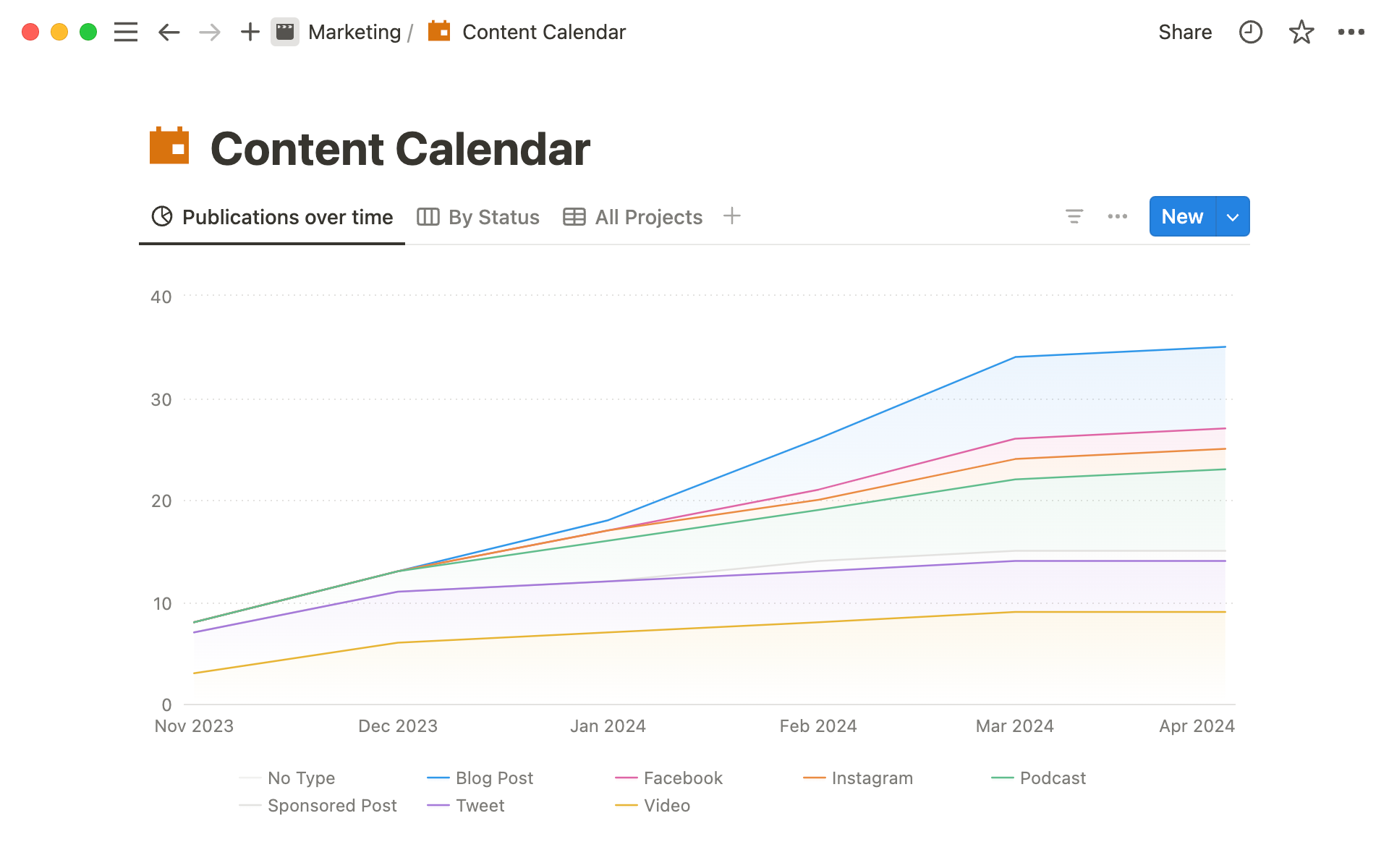
Content teams almost always end up with two parallel sources of truth: a Notion content calendar (where the team plans and writes) and a Google Sheets spreadsheet (where someone tracks performance). Status moves in Notion, traffic moves in Sheets, and nobody can answer "how did last quarter's content actually perform" without a manual VLOOKUP.
There's a cleaner setup. Run the calendar in Notion. Pull performance data into Sheets via your usual analytics connector (GA4, Plausible, Ahrefs, whatever). Use Sync2Sheets' Sheets-to-Notion direction to push the numbers back into the Notion calendar. Now the editor opens a piece in Notion and sees its current views, clicks, and conversions right next to the post itself.
This walkthrough shows the whole thing.
The architecture
Three pieces:
- A Notion content calendar database with the standard fields (Title, Status, Publish Date, Author, URL, Topic) plus a few performance columns the team would love to see.
- A Google Sheet synced 2-way with the calendar. Analytics data lands here via a connector add-on.
- Sync2Sheets keeping them aligned, with performance columns set to Sheets to Notion so the numbers flow back into Notion.
Setup takes ~25 minutes the first time. After that the loop runs forever.
Step 1: The Notion content calendar
If you don't have one, create a database with these properties:
- Title (Title)
- Status (Status): Idea, Drafting, Editing, Scheduled, Published
- Publish Date (Date)
- Author (Person)
- URL (URL): the public URL of the post
- Topic (Multi-select)
- Pageviews (Number, formatted as integer)
- Backlinks (Number)
- Conversions (Number)
- CTR (Number, formatted as percent)
The last four are the performance columns. They start empty.
Step 2: Sync the database to Google Sheets
Install Sync2Sheets, open the sidebar in a fresh Google Sheet, connect Notion, and pick the content calendar database.
In the first-sync card, set the column directions:
- Title, Status, Publish Date, Author, URL, Topic → Notion to Sheets (the team works in Notion)
- Pageviews, Backlinks, Conversions, CTR → Sheets to Notion (Sheets will compute these and write them back)
Click Start Sync. The initial sync runs in seconds.
Step 3: Connect Google Analytics to the same spreadsheet
This is the step that gets Google Analytics data moving toward Notion. Use whichever connector you already have. Common picks:
- Google Analytics 4: free GA4 sheets connector or Supermetrics
- Plausible: their official Sheets add-on
- Ahrefs: Looker Studio export, then Sheets export
- Search Console: free GSC API connector
The shape doesn't matter. You want a tab in the same spreadsheet that gives you URL → pageviews / backlinks / conversions / CTR for some date range.
Refresh schedule: most teams set this to refresh once a day. That's enough for content analytics.
Step 4: Look up performance by URL
In your synced Sync2Sheets tab, the Pageviews column is currently empty. Replace the empty cells with a VLOOKUP (or XLOOKUP if you're on Sheets after 2022):
=IFERROR(XLOOKUP([URL cell], analytics!A:A, analytics!B:B), 0)
Do the same for Backlinks, Conversions, and CTR. Within a few seconds (Sheets-to-Notion sync latency), those values appear in your Notion content calendar.
Open any post in Notion now. You see the post's URL, status, publish date, AND its current pageviews / backlinks / conversions / CTR. The whole picture in one place.
Step 5: Build an editorial dashboard
In a third spreadsheet tab, build a pivot table for editorial review:
- Rows: Topic
- Values: SUM of Pageviews, AVG of CTR, SUM of Conversions
- Filter: Publish Date in current quarter
Then a chart from the pivot. Top topics by traffic, by conversions, by CTR.
If you want this dashboard rendered inside Notion too, use Sync2Sheets' table blocks to embed the pivot, or block updates to drive top-of-page headline metrics like "Q2 total pageviews" or "Top performing topic this month".
What this loop actually unlocks
The obvious thing first: editorial decisions get data. When deciding what to commission next, the team sorts the Notion calendar by Pageviews or CTR and sees which topics worked. The dropping-by-feel "what should we write next?" meeting becomes a 10-minute review of a sorted view.
The non-obvious thing: the analyst who used to maintain "the content tracker spreadsheet" stops maintaining it. That role becomes analysis instead of spreadsheet plumbing. And editors who never opened the tracker now see post-level numbers in the same Notion page they're writing in, which means performance starts shaping the writing itself instead of being reviewed in a separate window once a quarter.
A note on real-time vs daily
Notion-to-Sheets sync is real-time (seconds). The performance numbers refresh as fast as your analytics connector pulls data. For GA4 that's usually daily.
If you want faster, point the analytics tab at a connector with faster refresh, or trigger manual refreshes during editorial reviews.
What about Google Calendar?
A different question that often lands on this page: syncing Notion with Google Calendar. That one has a first-party answer. Notion Calendar, the standalone calendar app included with every Notion account, syncs with Google Calendar natively and can display dates from your Notion databases next to your meetings.
For the editorial calendar in this guide you usually don't need it: switch the Notion database to a calendar or timeline view on the Publish Date property and the publishing schedule is right there, with the live performance numbers on each card. Use Notion Calendar when the publishing schedule has to share a screen with actual meetings.
Variations on this setup
- YouTube channel: replace GA4 with YouTube Studio's CSV export and you have a video content tracker.
- Newsletter: replace pageviews with opens and clicks, point the connector at your email tool.
- Podcast: replace with downloads per episode from your hosting platform.
The pattern is the same: Notion holds the editorial calendar, Sheets holds the performance data, Sync2Sheets ties them together.
The four small things that go wrong the first time
The URL column is your join key. URLs are usually the only consistent identifier between Notion (where you plan) and analytics (where you measure), so anything that breaks URL consistency breaks the loop. If your URLs sometimes have trailing slashes and sometimes don't, normalize before the VLOOKUP with a =LOWER(SUBSTITUTE([url], "/", "")) helper column.
Filter the editorial dashboard by Publish Date so you exclude posts that aren't live yet. Otherwise idea-stage entries pollute the topic averages.
The Sheets-to-Notion latency on the performance columns is a few seconds, so Notion shows updated numbers right after Sheets recalculates. If a number looks wrong, the most likely culprit is the analytics connector, not the sync.
A small confession
This setup looks like a lot when you write it out. The actual work is closer to 25 minutes for the first calendar. After that the marginal cost of adding performance columns to a new calendar (a podcast, a YouTube channel, a newsletter) is basically the lookup formula.
If you want to see what else 2-way sync can do before committing, the complete 2-way sync guide covers every direction the picker supports. Or skip ahead and install Sync2Sheets for the 7-day free trial.
Frequently asked questions
Can I connect Google Analytics to Notion?
Not directly, since Notion has no native Google Analytics integration. The reliable route goes through Google Sheets: pull GA4 data into a Sheet with a connector, then use Sync2Sheets to write the metrics into your Notion database. Pageviews, conversions, and CTR appear as regular Notion properties and update automatically.
How do I see pageviews for each post in my Notion content calendar?
Add a Pageviews number property to the calendar database, sync the database to Google Sheets with Sync2Sheets, and set that column to Sheets to Notion. In the Sheet, look up each post's pageviews from your analytics tab by URL with XLOOKUP. The numbers flow back into Notion within seconds and refresh whenever the analytics data does.
Does Notion sync with Google Calendar?
Yes, through Notion Calendar, the separate calendar app included with every Notion account. It syncs with Google Calendar natively and can show dates from Notion databases alongside your events. For an editorial calendar like the one in this guide, a calendar view on the Publish Date property usually covers it without leaving Notion.
Is the data in Notion live or a one-time import?
Live. Sync2Sheets keeps the Notion database and the Google Sheet aligned continuously, so whenever the analytics connector refreshes the spreadsheet, the updated numbers are written back to Notion automatically. There is nothing to re-import.
Sync Notion to Google Sheets in real time
Use Sheets formulas in Notion, build dashboards, back up your databases, and compare tools. Free 7-day trial.